
Version select#
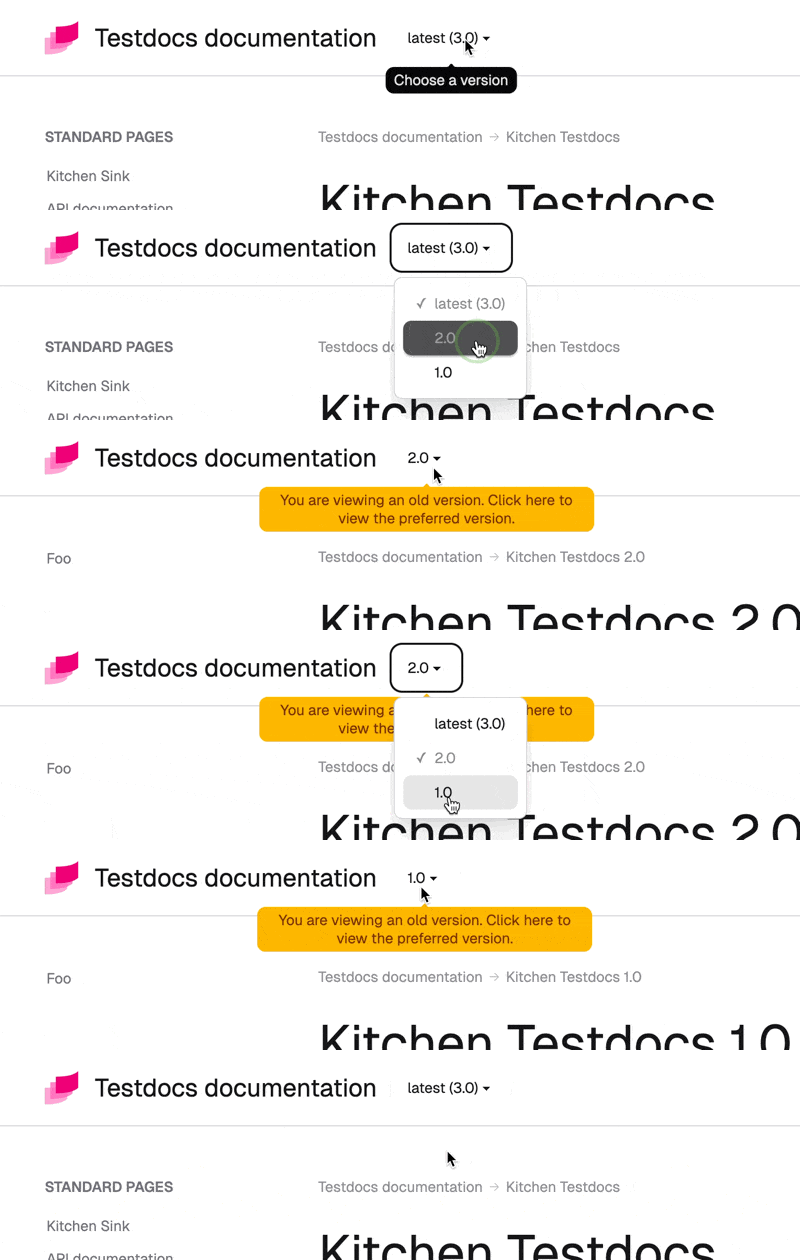
Let users switch between different documentation versions using a dropdown selector. When users select a version, the theme automatically redirects them to the corresponding page.
Key features:
Validation and preparation happen at Sphinx build time for better error handling
Minimal client-side JavaScript—only for navigation
Prevents 404 errors when a page doesn’t exist in a target version
Preserves URL fragments like
#setupand#faqwhen switchingHighlights the current version in the dropdown
Shows a warning if users aren’t viewing the preferred version
Organize Sphinx documentation for multiple versions#
The theme handles version switching, but you need to manage building, preparing, and deploying multiple documentation versions yourself.
You’ll manage both source files (.rst, .md) and built website files (.html, .css) across versions. Choose a strategy that fits your project’s needs.
Note
Already have multiple versions set up? Jump to Configuration.
Source files organization#
Here are three common approaches:
Separate branches (recommended for large projects)
Each version lives on its own branch (docs/1.0, docs/2.0, etc.). Built documentation deploys to version-specific directories on your hosting.
root/
├── docs/
│   ├── conf.py
│   ├── index.rst
│   └── ...
Monorepo approach (good for smaller projects)
All versions live in a single branch. Use symlinks or other mechanisms to share conf.py across versions.
root/
├── docs/
│   ├── shared/          # Optional common files (glossary, styles, etc.)
│   ├── v1.0/
│   │   ├── conf.py
│   │   ├── source/
│   │   └── build/
│   ├── v2.0/
│   │   ├── conf.py
│   │   ├── source/
│   │   └── build/
Single source, multiple configs
root/
├── docs/
│   ├── source/          # Shared source files
│   ├── conf-v1.0.py
│   ├── conf-v2.0.py
│   └── build/
Output files organization#
Deploy built websites consistently under the same URL pattern using the version_select_url option. Examples include <version>, /docs/<version>, or <language>/<version>.
Build and deploy each version separately with a consistent structure:
root/
├── 3.0/
│   ├── _images/
│   │   ├── login.png
│   │   ├── install-schema.png
│   │   └── ...
│   ├── _static/
│   │   ├── logo.svg
│   │   ├── pygments.css
│   │   └── ...
│   ├── api/
│   │   ├── index.html
│   │   ├── auth.html
│   │   └── operations.html
│   ├── user/
│   │   ├── index.html
│   │   ├── setup.html
│   │   └── printing.html
│   ├── index.html
│   ├── introduction.html
│   ├── contributing.html
│   └── ...
├── 2.0/
│   └── ...
└── 1.0/
    └── ...
Typically, you’ll create a script to build and organize this directory structure.
Configuration#
Add these required options to each version’s conf.py under html_theme_options:
version_select_url— URL pattern for the versionversion_select_current— the current documentation versionversion_select_data— list of available versions
To show a warning when users aren’t viewing the preferred version, also set:
version_select_preferred— the preferred versionversion_select_preferred_warning— customize the warning message (optional)
For example:
html_theme_options = {
  "version_select_url": "/$VERSION$/",
  "version_select_current": "latest",
  "version_select_data": [
    { "version": "latest", "label": "latest (3.0)" },
    { "version": "2.0" },
    { "version": "1.0" },
  ],
  "version_select_preferred": "latest"
}
Important
All versions must use the same URL schema and data. See Configuration synchronization for tips.
version_select_url#
Defines the URL pattern for the version homepage. JavaScript calculates the actual URL based on the current page.
Must include
$VERSION$placeholder (replaced at runtime with the actual version)Can be a full URL:
https://help.example.com/$VERSION$Or just a path:
/docs/$VERSION$Can end with or without a trailing slash
version_select_current#
Sets the current documentation version. The theme highlights this version in the dropdown.
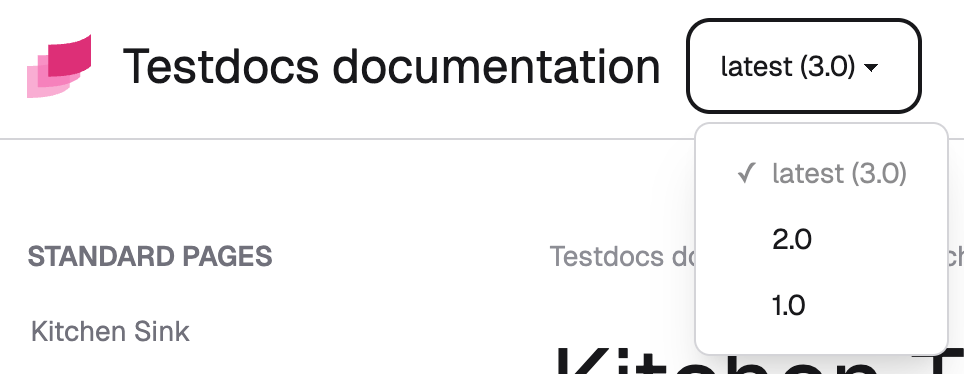
This value must match one of the versions in version_select_data:
html_theme_options = {
  "version_select_url": "/$VERSION$/",
  "version_select_current": "2.0",
  "version_select_data": [
    { "version": "latest", "label": "latest (3.0)" },
    { "version": "2.0" },
    { "version": "1.0" },
  ],
}
version_select_data#
Defines the available versions in the dropdown.
version— required, any string identifying the versionlabel— optional, displayed name (defaults toversionif omitted)
Versions appear in the order you list them—there’s no automatic sorting. Users typically expect latest versions first, so order them accordingly.
html_theme_options = {
  "version_select_url": "/$VERSION$/",
  "version_select_current": "2.0",
  "version_select_data": [
    { "version": "v2.0.0", "label": "latest (v2.0.0)" },
    { "version": "v1.30.0" },
    { "version": "v1.0.0" },
    { "version": "v1.0.0rc1", "label": "v1.0.0 RC1" }
  ],
}
version_select_preferred#
The preferred version must exist in version_select_data. When users click the warning message, they’re redirected to the preferred version.
version_select_preferred_warning#
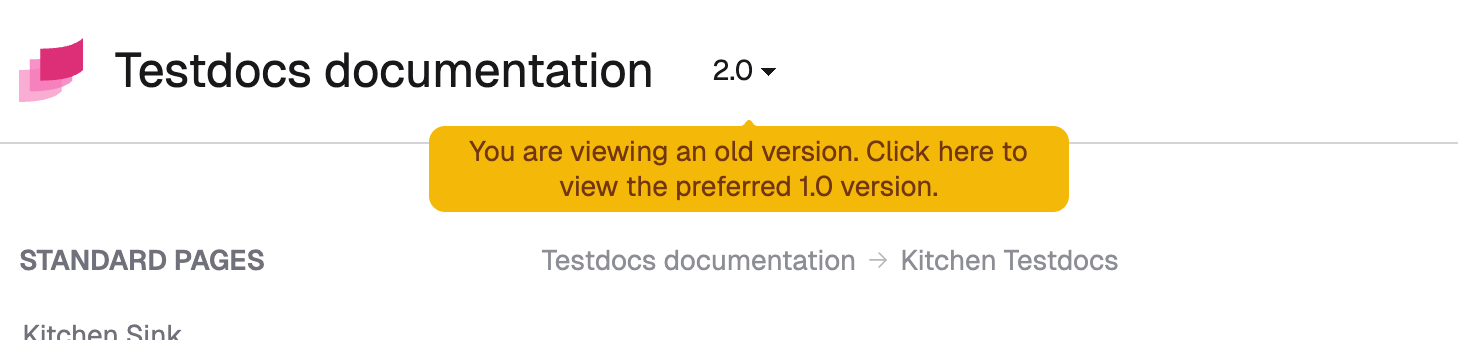
Customize the message shown when users aren’t viewing the preferred version. Use the $PREFERRED$ placeholder to insert the preferred version name.
The default message is: “You are viewing an old version. Click here to view the preferred $PREFERRED$ version.”
html_theme_options = {
  "version_select_url": "/$VERSION$/",
  "version_select_current": "2.0",
  "version_select_data": [
    { "version": "3.0", "label": "latest (3.0)" },
    { "version": "2.0" },
    { "version": "1.0" },
  ],
  "version_select_preferred": "3.0",
  "version_select_preferred_warning": f"Click to see $PREFERRED$ version."
}
Syncing configuration#
Keep configuration consistent across all versions’ conf.py files. Since conf.py is regular Python, you can use any mechanism to sync it—load from JSON, read from a Python package, etc.
Ensure these options are synchronized across versions:
version_select_urlversion_select_dataversion_select_preferredversion_select_preferred_warning(if using warnings)
For example, here’s how three versions’ conf.py files might look:
html_theme_options = {
  "version_select_url": "/$VERSION$/",
  "version_select_current": "latest",
  "version_select_data": [
    { "version": "latest", "label": "latest (3.0)" },
    { "version": "2.0" },
    { "version": "1.0" },
  ],
  "version_select_preferred": "latest"
}
Common practice: call the most current version “latest” and use the label field to show the actual version number.
html_theme_options = {
  "version_select_url": "/$VERSION$/",
  "version_select_current": "2.0",
  "version_select_data": [
    { "version": "latest", "label": "latest (3.0)" },
    { "version": "2.0" },
    { "version": "1.0" },
  ],
  "version_select_preferred": "latest"
}
html_theme_options = {
  "version_select_url": "/$VERSION$/",
  "version_select_current": "1.0",
  "version_select_data": [
    { "version": "latest", "label": "latest (3.0)" },
    { "version": "2.0" },
    { "version": "1.0" },
  ],
  "version_select_preferred": "latest"
}
Load current version from Python package#
If your Python package and documentation are in the same repository, you can read the version directly from the package:
version = my_package_name.__version__
...
html_theme_options = {
  ...
  "version_select_current": version,
  ...
}
Load data from JSON#
Create a
versions.jsonfile following theversion_select_datastructure:[ { "version": "latest", "label": "latest (3.0)", "url": "/en/latest/" }, { "version": "2.0", "url": "/en/2.0/" }, { "version": "1.0", "url": "/en/1.0/" } ]
Place it in the same folder as
conf.py.Load it in
conf.py:import json from pathlib import Path versions_file = Path(__file__).parent / "versions.json" ... html_theme_options = { ... "version_select_data": json.loads(versions_file.read_text()) ... }
Load data from URL#
Create a
versions.jsonfile following theversion_select_datastructure.Publish it at a publicly accessible URL.
Load it in
conf.py:import requests html_theme_options = { ... "version_select_data": requests.get("https://example.com/versions.json").json() ... }
Note
This example uses the
requestslibrary, which Sphinx already depends on—no extra installation needed.
Preventing 404 errors#
Before switching versions, a small JavaScript script checks if the page exists in the target version.
If the page doesn’t exist, or if a network error occurs, users are redirected to the version homepage instead. Here’s an example:
Viewing version 2.0 at
https://docs.example.com/2.0/user-guide.htmlSwitch to version 1.0
JavaScript checks if
https://docs.example.com/1.0/user-guide.htmlexistsIf not, redirect to
https://docs.example.com/1.0/instead
Caution
URL checks use the HEAD method and are subject to CORS restrictions. Same-origin requests (script and docs on the same domain) work fine. Most setups won’t experience issues since the documentation is self-hosted.
Troubleshooting#
Error: “Current version not found in URL”#
If you see this error in the browser console:
version-select.js:21 Uncaught Error: Current version '3.0' not found in current page URL
It means the current page URL doesn’t include the version. The script can’t extract the version to replace it when switching.
Solution: Your documentation URLs must include the version. For example:
❌ Invalid:
https://docs.example.com/guide/install/✅ Valid:
https://docs.example.com/2.0/guide/install/